How to Import Ant Design Icons into Figma
Alibaba's Ant Design system icons — Outline, Filled, Two-Tone.
What is Ant Design Icons?
Ant Design Icons is the official icon set for Ant Design, Alibaba's enterprise design system. Icons are organized into three themes — Outline, Filled, and Two-Tone — covering common UI and business needs.
- Maintained by
- Ant Design team (Alibaba)
- License
- MIT
- Icon count
- ~700+
- Formats available
- SVG, React, Vue, Angular, Web Font
Very widely used within products built on Ant Design specifically, and broadly recognized in enterprise/admin-tool design given Ant Design's own popularity in that space.
Strengths
- Three coordinated themes (Outline/Filled/Two-Tone) from one team, useful for state changes without mixing sources
- Backed by Alibaba with strong maintenance and wide real-world adoption in enterprise/admin products
- Broad framework package coverage (React, Vue, Angular) for design-to-code consistency
Worth knowing
- Not every icon has all three themes — check availability for the specific icon and theme combination before relying on it
- No official Figma Community file from the Ant Design team itself — available Figma plugins for it are third-party
- Smaller total vocabulary than the largest general-purpose sets (Tabler, Material Symbols)
Good fits
- Products built on or alongside the Ant Design system, for visual consistency
- Enterprise/admin interfaces needing a Two-Tone option for subtle visual hierarchy without a full color icon
- Teams already using Ant Design's React/Vue/Angular component packages who want the design file to match
Ways to import Ant Design Icons into Figma
Three realistic routes, compared honestly — including where VectaGrid genuinely isn’t the best fit.
Download the official SVGs
Pros
- Full control over exactly which icons you take
- Always current — no snapshot to fall out of date
- Works even when no official Figma file exists
Cons
- Fully manual from there — each SVG needs converting to a component by hand
- No built-in variant structure; you're building that yourself
- Tedious past a handful of icons
Best for: Grabbing a handful of specific icons, or teams building a fully custom variant structure from scratch.
Browse Ant Design Icons on GitHubFigma plugins (no official Community file exists)
Pros
- The Iconify plugin indexes this set alongside 150+ others, searchable in-editor
- Good for grabbing icons one at a time while designing
Cons
- Ant Design Icons doesn't publish its own official Community file
- Not suited to importing the whole set as a structured library
Best for: Occasional single-icon use rather than building a full library.
Bulk import with VectaGrid
Pros
- Imports the whole downloaded Ant Design Icons set — or any subset — in one pass
- Normalizes every icon to a consistent frame automatically
- Builds a Color=Black/White variant set per icon, matching Figma's own one-component-per-icon guidance
- Same workflow whether the source is this library, another one, or your own proprietary icons
Cons
- Free plan caps at 100 icons per import; unlimited is a one-time $39
- Built for monochrome UI icon sets — doesn't preserve original multi-color artwork
Best for: Importing all of Ant Design Icons (or a large subset) as a properly structured component library — especially when combining it with your own icons.
See how VectaGrid works →Walkthrough: importing Ant Design Icons as a structured component library
The steps below cover the bulk-import route in detail, since it’s the one that isn’t already self-explanatory. Steps 1-2 apply regardless of which import method you end up using.
- 1
Download the SVG source files
Clone or download Ant Design Icons’s GitHub repository and locate its raw SVG folder — most icon library repos keep source SVGs in a dedicated
icons/orsvg/directory rather than only shipping compiled framework packages — check the repo’s README if it’s not obvious. - 2
Optimize the files first (optional, recommended)
Icon exports often carry unnecessary editor metadata and excess path precision. Running them through the free SVG optimizer first keeps the source files — and the resulting Figma file — lighter. Not required, but it’s a five-minute step that avoids a heavier design file later.
- 3
Select the files in VectaGrid
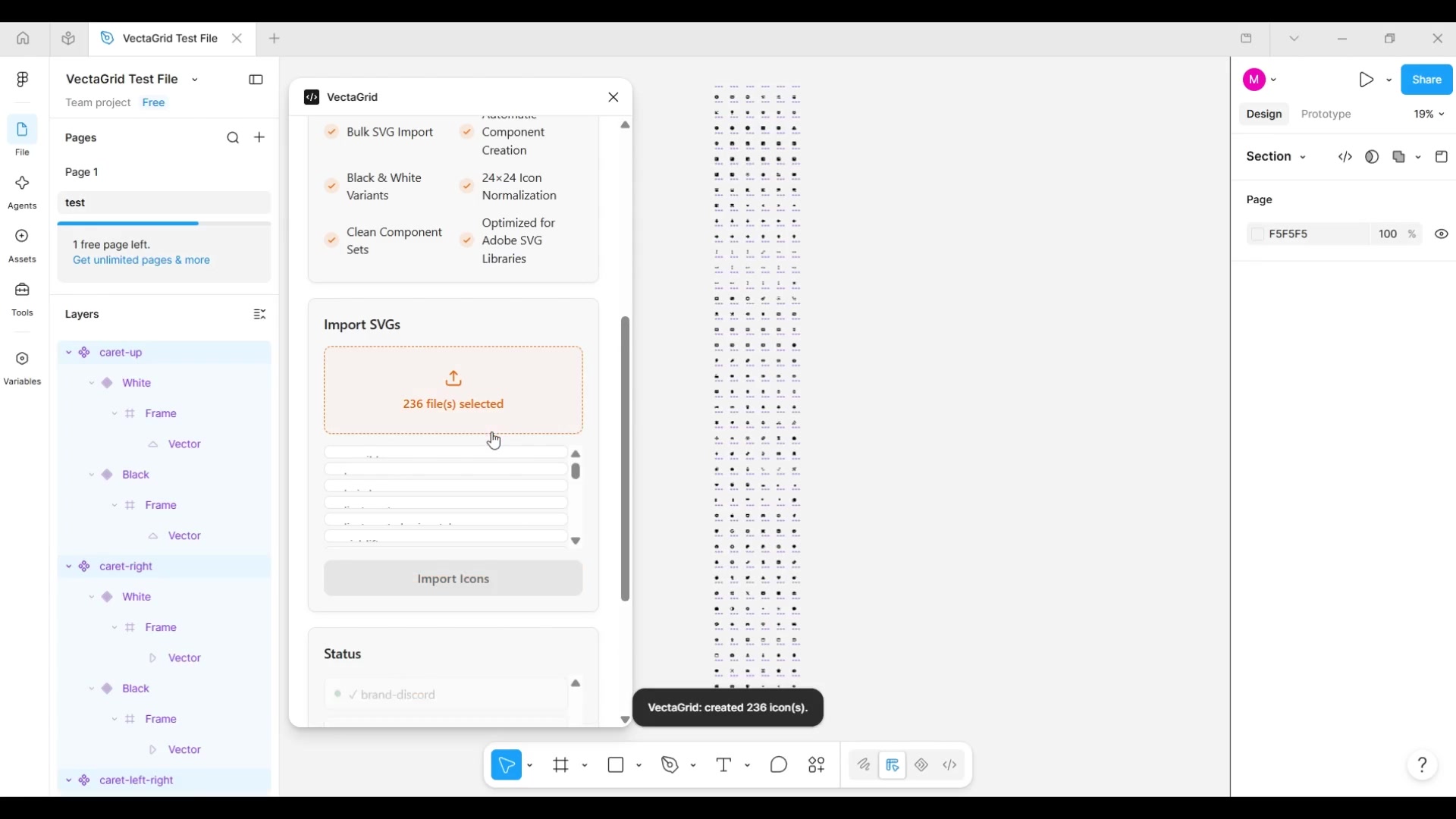
Open VectaGrid in Figma, click the dropzone, and select the SVG files or folder — one file or the entire set at once. Free plan covers up to 100 icons per import; larger sets need Pro or a couple of batched imports.
- 4
Click Import Icons
Each SVG is parsed, centered, and normalized into a 24×24 frame regardless of its original viewBox, then cloned into
Color=BlackandColor=Whitevariants combined into one component set per icon — matching the one-component-per-icon structure Figma’s own documentation recommends. - 5
Review, then publish as a team library
Every generated component set lands arranged in a clean grid on the current page — spot-check a handful of icons, then publish the page as a Figma team library the same way you would for any other component set.
Troubleshooting
- Icons look inconsistently sized after import elsewhere in your file: that’s the source viewBox differences that Ant Design Icons’s files can carry — VectaGrid’s normalization step handles this automatically, so re-check you imported through it rather than a manual drag-and-drop.
- Hit the 100-icon free-plan cap: split the import into batches, or unlock unlimited imports with the one-time Pro upgrade if you’re importing the full set regularly.
- Need a color variant beyond Black/White: VectaGrid currently generates Black/White pairs — for a specific brand color, recolor the generated components after import, or maintain that variant manually alongside the generated set.
Comparing the three workflows
The same tradeoffs apply whether you’re importing Ant Design Icons or any other SVG icon set — this is about the method, not the specific library.
| Dimension | Manual import | Official file | VectaGrid |
|---|---|---|---|
| Setup time | Slow — one icon at a time | Fast — duplicate and go | Fast — one bulk import |
| Scales to hundreds of icons | No — linear manual effort per icon | Only as well as the source file scales | Yes — designed for bulk import |
| Real components (not layer groups) | Only if you manually convert each one | Yes | Yes |
| Consistent frame/variant structure | Only if you build it yourself | As shipped by the library maintainer | Automatic — normalized frame + Color variant |
| Stays current with upstream updates | Yes, if you re-download | No — duplicated snapshot | Yes, if you re-import updated source files |
| Works with your own proprietary icons | Yes | No — official file is that library only | Yes — same workflow for any SVG source |
| Team library maintenance | Manual, ongoing | Manual re-duplication for updates | Re-import + publish, same as any component update |
| Cost | Free | Free | Free up to 100 icons, $39 one-time for unlimited |
Ant Design Icons FAQ
Yes — MIT licensed, permitting personal and commercial use with no attribution requirement.
Related guides
How to Convert SVG Icons to Figma Components
The manual copy-paste method, why it falls apart past a handful of icons, and how to do it properly at scale.
How to Build a Figma Icon Library for Your Design System
Variants, consistent framing, and naming conventions — what actually makes an icon library production-ready.
How to Bulk Import Hundreds of SVG Icons into Figma
Importing an entire icon set at once instead of one file at a time, and what to check before you do.
Related icon libraries
Skip the manual work — VectaGrid does this automatically.
Drop in a folder of SVGs and get a normalized, variant-ready component library in seconds. Free for up to 100 icons.
Questions first? Email support@mosherlabs.dev or see the full VectaGrid page.